
Are you not able to find the .htaccess file on your live WordPress site? Learn how to find it in the root directory of your server using FTP or File Manager via cPanel. Also learn how to create a .htaccess file without a plugin.
The .htaccess file is an amazing tool given to us by Apache (the web server WordPress commonly runs on) to perform some powerful actions on your website. Of course, the value of the .htaccess file is lost on you if you don't know what it is, where to find it, or what to do if you can't find it. This article covers the basics.
What Is the .htaccess File?
.htaccess stands for "hypertext access" file. This file is very important as it enables you to change the configuration of many features on your web server. It can be used to redirect webpages/users, password-protect the admin area, protect specific directories, and perform many other functions.
The dot in front of the file name marks it as a hidden file, meaning it won't be visible when you access your web server via FTP unless "show hidden files" is enabled. Otherwise, you'll need to log in to cPanel and follow this path:
cPanel >> File Manager >> Public HTML >> Website Folder
Where Can I Find My .htaccess File?
In most cases, the .htaccess file can be found in the root directory of your website. More specifically, open your "public_html" folder and you'll find it sitting right there. But sometimes, it's possible your file may not be located there.
In most cases, the .htaccess file isn't visible because WordPress hasn't yet generated one. This usually happens if you haven't set up your permalinks. But most of the time, the .htaccess file exists in WordPress's root directory once permalinks are configured.
How to Create a .htaccess File
Go to Settings and open the Permalinks screen.
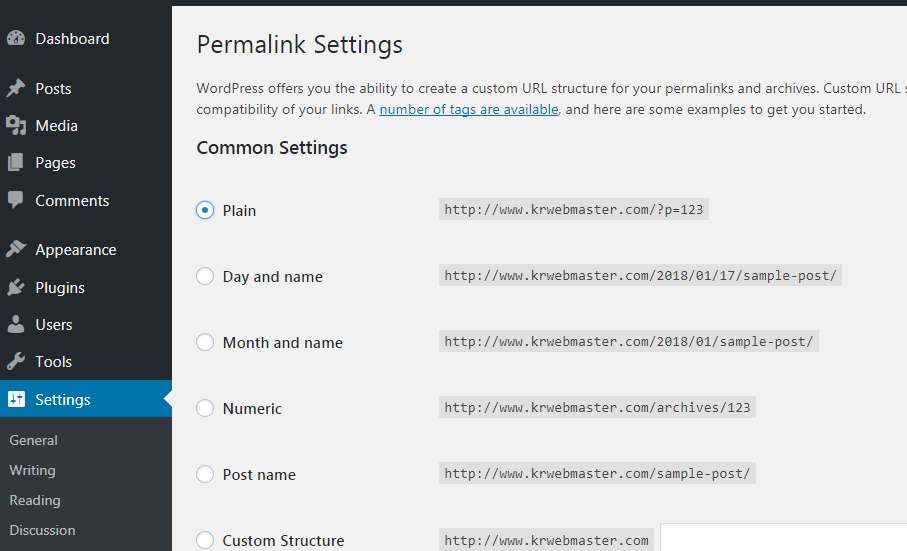
Now click on Save Changes, and WordPress will automatically generate a .htaccess file in your website's root directory.
Even after doing this, if WordPress doesn't generate a .htaccess file for your website, it may be because of permission issues. WordPress will typically indicate this with a message at the bottom of the Permalinks screen, saying the .htaccess file isn't writable. It will also give you the code that needs to be added to your .htaccess file if your permalink structure is set to anything other than the default.
From there, it's simple: copy the text shown in that message, paste it into a text editor like Notepad, and save the file as ".htaccess" anywhere on your system. Then connect to your website using any FTP client and upload your newly created .htaccess file to the root directory of your web server.
There are a few plugins available that create the .htaccess file for you, but it's still a good idea to know how to create one yourself.
A Common Point of Confusion: Nginx Doesn't Use .htaccess
If you're on a modern host that runs Nginx (or a hybrid Nginx + Apache setup, common with many managed WordPress hosts today), you may not find a working .htaccess file at all — and that's expected. Nginx doesn't read .htaccess files; instead, redirect and rewrite rules are configured directly in the server's Nginx config, usually managed by your hosting provider. If you're on managed WordPress hosting and can't locate or edit .htaccess, check with your host — they may need to make the change on the server config side instead.
A Quick Security Tip
Since .htaccess controls sensitive server behavior, it's worth adding a small block to prevent anyone from directly viewing it in a browser. Add this to the top of your .htaccess file:
<Files .htaccess>
Order Allow,Deny
Deny from all
</Files>
Most hosts block this by default, but it's a cheap, one-time safeguard worth having in place regardless.